Soft84
Introduction

Soft84 is a calculator app for Android OS devices. You can
install it from
Google's Android Market.
It is inspired by Hewlett Packard's
HP 48 calculator,
though Soft84 is missing a lot of features.
At the moment it is a capable RPN scientific calculator with units and
rudimentary programming features.
It uses several libraries for arbitrary precision arithmetic:
GNU Multiple Precision (GMP),
GNU MP Floating/Rounding (MPFR), and
GNU MP Complex (MPC).
In principle it can be an arbitrary precision calculator, though at the
moment it is hard-coded to 100 decimal digits of precision.
Soft84 is released under the terms of the GNU GPL V2.
To get the source:
git clone http://galexander.org/git/soft84.git
User interface
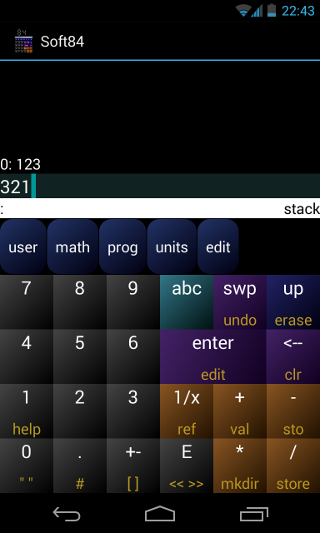
Soft84 uses what is known as Reverse Polish Notation. This
means that you enter numbers onto a stack, and then perform operations on
that stack. Most operations take the top two elements of the stack
(though physically displayed at the bottom of the display) and combine
them to form a new element on the stack that replaces them. For example,
to compute 123+321, you would type 123 then enter, then
321, then +. The answer 444 would be on the
top of the
stack.
Many buttons have multiple functions, in which case the secondary
function (yellow) can be accessed by long-pressing the button.
Starting at the top, here is a description of the elements of the
Soft84 interface:
- stack display
- The top portion of the display contains the current contents of the
stack. The "top of stack" (where operations occur) is displayed at the
bottom of the area. The 0: represents the depth of the stack --
higher numbers mean it is deeper (lower) in the stack. If the stack is
too big to fit on the screen, this area is finger-scrollable. If you
double-tap on an entry on the stack, then its value will be duplicated
onto the top of the stack.
- status bar
- The left part of the status bar indicates the current variable path, ":"
represents the root (the top-level). The right part of the status bar
indicates the current mode. "stack" is the default stack view, "edit" is
a view for editing compound objects, and several modifiers which will
affect your next keypress will also be displayed here.
- variable buttons (blue)
- This area is a horizontally-scrollable list of the contents of the
current directory. Buttons that are rounded are subdirectories, buttons
which are square (none shown here) are variables within the directories.
Clicking on a subdirectory button enters that subdirectory. Pressing on
a variable button causes the contents of that variable to be pushed onto the
stack, or executed if the button contains a << >>
program. Long-pressing a variable button causes the contents of the
variable to be pushed onto the stack, even if it contains a
<< >> program.
The user directory is for your own storage (much like
memory on a traditional calculator), math provides access to
more advanced mathematical operations (such as lg and
sin), prog holds commands useful for programming,
units has a lot of units (like inches, seconds, etc), and
edit provides a couple commands useful when in edit
mode.
- up/erase button (blue)
- Goes to the parent directory within the variable filesystem.
Long press for erase, which changes to "ERASE" mode, erasing the
next variable you tap on.
- abc button (cyan)
- Brings up the Android keyboard, for entering characters and
punctuation, such as the name of a variable. When you are done you
can generally clear the Android keyboard with the back button.
- swp/undo button (purple)
- Swaps the top two elements of the stack.
Long press for undo, which restores the stack to the state just
before the previous command. Note that it only restores the stack -- any
changes to the variables are irreversible.
- enter/edit button (purple)
- Terminates the current entry area, causing its result to be pushed
on the stack or inserted into the edit buffer. It also can be used to
terminate edit mode. If the edit buffer is empty, it dups the
top of the stack.
Long press to edit the top member of the stack.
- <--/clr button (purple)
- Backspace within the current entry area, or pop from stack
(discard top value).
Long press to clear all of the elements on the stack.
- orange buttons
- Basic arithmetic operators, including inversion.
- ref (orange 1/x)
- Long press to change to "REF" mode, which will push the name of the
next button that you tap onto the stack.
- val (orange +)
- Long press to change to "VAL" mode, which will push the value of the next
variable that you tap onto the stack. This is useful for variables
that contain << >> programs, so that you can view
or edit the program instead of executing it.
- sto (orange -)
- Long press to change to "STO" mode, which will store the value from the
top of the stack into the next variable that you tap.
- mkdir (orange *)
- Long press to create a subdirectory according to the name on the top
of the stack. If a string name was entered, it will be created in the
current directory. If a symbolic name (like from ref) is on the
stack, that name will provide the path. (dir -- )
- store (orange /)
- Long press to take two arguments off the stack, the name of the
variable (on the top of the stack) and the value to store into it.
(value name -- )
- grey buttons
- Basic numeric entry buttons, including decimal point, sign
inversion (for negative numbers), and E (base 10 exponent). For
example, to enter one million (1 with six zeros after it), you may enter
1E6.
- help (grey 1)
- Long press to visit this help webpage in your Android browser app.
- " " (grey 0)
- Long press to begin string entry mode, for entering string literals.
- # (grey .)
- Long press to begin integer-entry mode. Integers can be of an
arbitrary length and are always presented precisely, but cannot have a
decimal point.
- [ ] (grey +-)
- Long press to begin list-entry mode. In list-entry mode, you can
tap on a point within the list to move the cursor. Values typed in
will be inserted before the current cursor position. Backspace will
delete the thing before the cursor.
- << >> (grey E)
- Long press to begin program-entry mode. The program editor is very
similar to the list editor. Programs are basically lists of commands
which are executed in order. Note that in the editor, if you execute an
operator like + or sin, a call to that operator is
inserted.
Working with units
Under the :units directory, most of the common scientific
units of measurement can be found. When performing arithmetic on numbers
with units, Soft84 attempts to maintain the units sensibly. For example,
if you have 1_m and 2_s on the stack, then you hit
/ (divide), then Soft84 will compute 0.5_m/s.
To add a unit to a number which is on top of the stack, just navigate
to the unit in the :units directory, and then tap on the unit.
If the number already has units, then this new unit will be effectively
multiplied by the existing units.
To put a unit in the denominator, you would tap 1, then tap
the unit, then / (divide). For example, to specify that a
number is a rate over time, you may divide by 1_s.
To convert to a specified unit, simply tap 0 and then build
up the unit, then tap + (plus). For example, if you have
1_yd on the stack, and you were to add 0_ft to it, then
it would convert that value to 3_ft.
To normalize units, you would tap :units:norm (which is at
the far right of the :units list). This attempts to reduce the
unit specification to the simplest form involving base SI units. For
example, 1_mph is normalized to 0.44704_m/s.
Editor
When entering lists ([ ]) or
functions (<< >>), the list editor is used.
You can also edit a list that is on the stack by long-pressing the enter
key.
The list editor acts on tokens. The cursor is on the highlit token.
New tokens are input before the cursor. To input a new numeric token,
press the number buttons until your number is complete, then hit enter.
To input a variable or operation name, press the corresponding button.
To input the value of a variable, long-press its button.
To edit the value under the cursor, hit the enter key. If you hit
enter on the last token of the list (either ] or >>),
then the editor will close.
Pressing backspace (<--) will delete the token before the
cursor.
Special editor commands are available under the :edit
directory. The stk-> button temporarily suspends the editor,
allowing you to perform stack computations. When you are done and the
desired value is on the top of the stack, select done and it
will input the value from the top of the stack into the editor. In the
editor, the done button closes the editor.
Within the editor, the ref mode causes the REF: form
of a variable's name to be input. The val mode causes the value
of the variable to be input. The sto mode causes the
REF: form to be input, followed by an invocation of the
store command.
Programming
At its core, Soft84 is an interpretter for a simple language
with a typed stack, not dissimilar from "Reverse Polish Lisp" (RPL)
used by some HP calculators.
In this language, most everything is just a list of tokens. Tokens
either reference a variable (word), or provide a literal value which is
pushed onto the stack when executed.
If a token begins with alphabetic or colon (:), then it is a
variable reference. If there is no colon, the object is first
searched for in the current directory, then in the (hidden)
:builtins directory, and then as a fall-back it is assumed to be
a not-yet-created item in the current directory. When a variable
reference is executed, if the variable contains a function then that
function is executed. If the variable does not contain a function, its
value is pushed onto the stack. If the variable's symbol is prefixed
with "REF:" then the name of the variable is pushed onto the stack (i.e.,
for use with "store").
If a token begins with a digit, decimal point (.), or
minus sign (-), then
it is a floating-point number. It may have a base-10 exponent
suffixed such as E6. After the number's value is fully
specified an optional unit can be provided, of the form
_unit.
If a token begins with a quote mark (") then it is a string
literal which can contain \r, \n, \t,
\\, \" or any regular character and terminates at the
next unescaped ".
If a token begins with a pound sign (#) then it is an
integer literal. Integer literals cannot have units, or exponents, or
decimal points, though they can be negative. Integers are
useful for precise arithmetic (such as currency), for logical values
(#0 is the prefered "false" for conditional execution), and for
binary arithmetic, and for base conversions (XXX - not yet).
If a left bracket ([) is encountered, then the tokens up
to the matching right bracket (]) are collected into a list,
which is then pushed onto the stack as a literal.
If a code start token (<<) is encountered, then the
tokens up to the matching code end token (>>) are
collected into a list known as a function, which will be executed if the
variable it is stored in is called, or if the :prog:eval
command is executed.
Dictionary
This is a partial dictionary of the builtin words in this language.
The parenthesized stack notation (x -- y) indicates the contents
of the stack before (x) and after (y) the word is
executed. In the stack descriptions, the rightmost element represents
the top of the stack.
All of these words are actually defined in the :builtin path
(which is mirrored under :prog:builtins),
but are accessible in an organized fashion through the prog or
other menus.
Note that branching words do honor nesting properly.
- :prog:eval (func -- )
- Executes the value at the top of the stack (such as a function
literal).
- :prog:stack:dup (x -- x x)
- Duplicates the value on the top of the stack.
- :prog:stack:drop (x -- )
- Discards the value at the top of the stack.
- :prog:stack:rot (a b c -- b c a)
- Takes the value two deep in the stack, and moves it to the top of the
stack.
- :prog:stack:over (a b -- a b a)
- Duplicates the value that is just below the top of stack.
- :prog:stack:nip (a b -- b)
- Discards the value that is just below the top of stack.
- :prog:stack:tuck (a b -- b a b)
- Places a copy of the value at the top of stack two deep into the
stack.
- :prog:stack:pick (a0 .. an n -- a0 .. an a0)
- Duplicates the value that is at depth n in the stack.
- :prog:stack:roll (a0 .. an n -- a1 .. an a0)
- Moves the value that is at depth n in the stack to the top
of stack.
- :prog:var:recall (name -- value)
- Replaces a variable name on the top of the stack with the value of
the named variable.
- :prog:var:store (value name -- )
- Stores the value just below the top of the stack into the variable
which is named on the top of the stack.
- :prog:var:mkdir (name -- )
- Create a new subdirectory to hold variables.
- :prog:var:chdir (name -- )
- Enter a subdirectory.
- :prog:var:erase (name -- )
- Erase a variable (can only erase directories once they are empty).
- :prog:var:order (list -- )
- Takes a list of the variables in the current directory and re-orders
the directory to match the order of the list.
- :prog:test:== (x y -- x==y)
- Pushes #1 onto the stack if the top two values are equal, or
#0 otherwise.
- :prog:test:!= (x y -- x!=y)
- Pushes #1 onto the stack if the top two values are not
equal, or #0 otherwise.
- :prog:test:< (x y -- x<y)
- Pushes #1 onto the stack if the value just below the top is
less than the top of stack, or #0 otherwise.
- :prog:test:> (x y -- x>y)
- Pushes #1 onto the stack if the value just below the top is
greater than the top of stack, or #0 otherwise.
- :prog:test:<= (x y -- x<=y)
- Pushes #1 onto the stack if the value just below the top is
less than or equal to the top of stack, or #0 otherwise.
- :prog:test:>= (x y -- x>=y)
- Pushes #1 onto the stack if the value just below the top is
greater than or equal to the top of stack, or #0 otherwise.
- :prog:branch:if (cond -- )
- If the condition on the top of stack is zero, then execution branches
to the word just after a following then or else,
whichever comes first. If it is non-zero, then execution continues on
the next word after if. For example:
if "true" else "false" then
will push "true" on the stack if the top of stack is non-zero, or "false"
if it is zero. Or the false clause may be omitted:
if "true" then
- :prog:branch:else ( -- )
- Branch to the word just after a following then.
- :prog:branch:then ( -- )
- This word has no effect when executed, it is just a label for
if or else to branch to.
- :prog:branch:for (n -- n-1)
- If the value on the top of the stack is greater than zero, then it is
decremented and execution continues to the body of the loop. If it
is less than or equal to 0, then it is dropped and execution branches to
the word after a following next word. For example:
5 for dup next
Will put 4 3 2 1 0 onto the stack.
- :prog:branch:next (n -- n)
- Branches to the preceding for word, re-testing the top of
the stack and decrementing it if non-zero. If it is zero, then execution
continues after next.
- :prog:branch:begin ( -- )
- begin merely provides a location for subsequent
until or repeat words to branch to.
- :prog:branch:until (cond -- )
- If the top of stack is zero, then execution branches to the preceding
begin word. If it is non-zero, then execution continues at the
next word after until. For example:
begin ... done? until
Loops until the word done? evaluates to a non-zero value.
- :prog:branch:while (cond -- )
- If the top of stack is zero, then execution branches to the word
after a following repeat word. If the top of stack is
non-zero, then execution continues at the next word after
while. For example:
0 REF:user:i store begin ... :user:i 5 < while :user:i 1 + REF:user:i store repeat
executes the body of the loop (...) 5 times, with
:user:i holding the values 0 1 2 3 4 in sequence.
- :prog:branch:repeat ( -- )
- If repeat is executed, then execution branches back to the
preceding begin word.
Change log
2013/11/25 Version 0.10: Fix crash in landscape mode.
2013/11/24 Version 0.09: Fix backspace/focus issues with
Google Keyboard (IME). Shorten displayed variable names when clever.
Long click on variable for value.
2013/11/16 Version 0.08: Add flow-control words in
:prog:branch (if/else/then,
for/next,
begin/until/while/repeat).
Add comparison words in :prog:test (==, !=,
<, >, <=, >=). REF/STO
modes work in the editor now. Reorganize menus a little. Entry and
stack display tweaks.
2013/11/09 Version 0.07: Add long-press to access secondary functions
(instead of deprecated Android "menu" button). Double-click on stack
element to push it onto the top. Flesh out :prog:stack with
rot, over, nip, tuck, pick,
and roll. A few visual tweaks.
2012/03/19 Version 0.06: Fix bugs, update to new Android SDK.
2012/01/02 Version 0.05: Fix a couple nuissance bugs.
2011/12/12 Version 0.04: Fixed a bunch of obnoxious quirks.
Especially, will not generate pages of "err:writeprotect" on upgrade
(hold down backspace to clear these).
2011/12/11 Version 0.03: Added "undo" button, much improved "menu"
functionality, painless upgrades (no need to clear user memory
anymore).
2011/12/10 Version 0.01: Added support for modifying variables, such
as in the "user" directory.